
Website Feature Guide
There are several features across the website that, if missed, will make it hard to go through the content effectively. The following features are shown with examples to help you gain a quick understanding of them before you make your way through the website.
Across the Website
Section titled “Across the Website”- Links are shown with green text
- Clicking on an image enlarges it and shows a caption, if applicable. Press the
Esckey to minimize it again. - The website has a glossary of terms related to the content. Whenever a word in that glossary is mentioned in the website, it will be underlined. You can hover over these underlined words to get a quick definition (e.g. COTS, OTB).
- Some information is hidden in dropdowns. Try to check most of them!
Example
Information is hidden here to clean up pages.
Admonitions (Call-Outs)
Section titled “Admonitions (Call-Outs)”Quick tips are shown in a “Tip” box like this one.
Any extra notes about things are shown in a “Note” box like this one.
Pay attention to anything in a “Warning” box like this one.
Examples for different concepts are shown in an “Example” box like this one.
Learning Course
Section titled “Learning Course”Buttons
Section titled “Buttons”Important Onshape documents for the page will be shown as a button like the one below:
Slideshows
Section titled “Slideshows”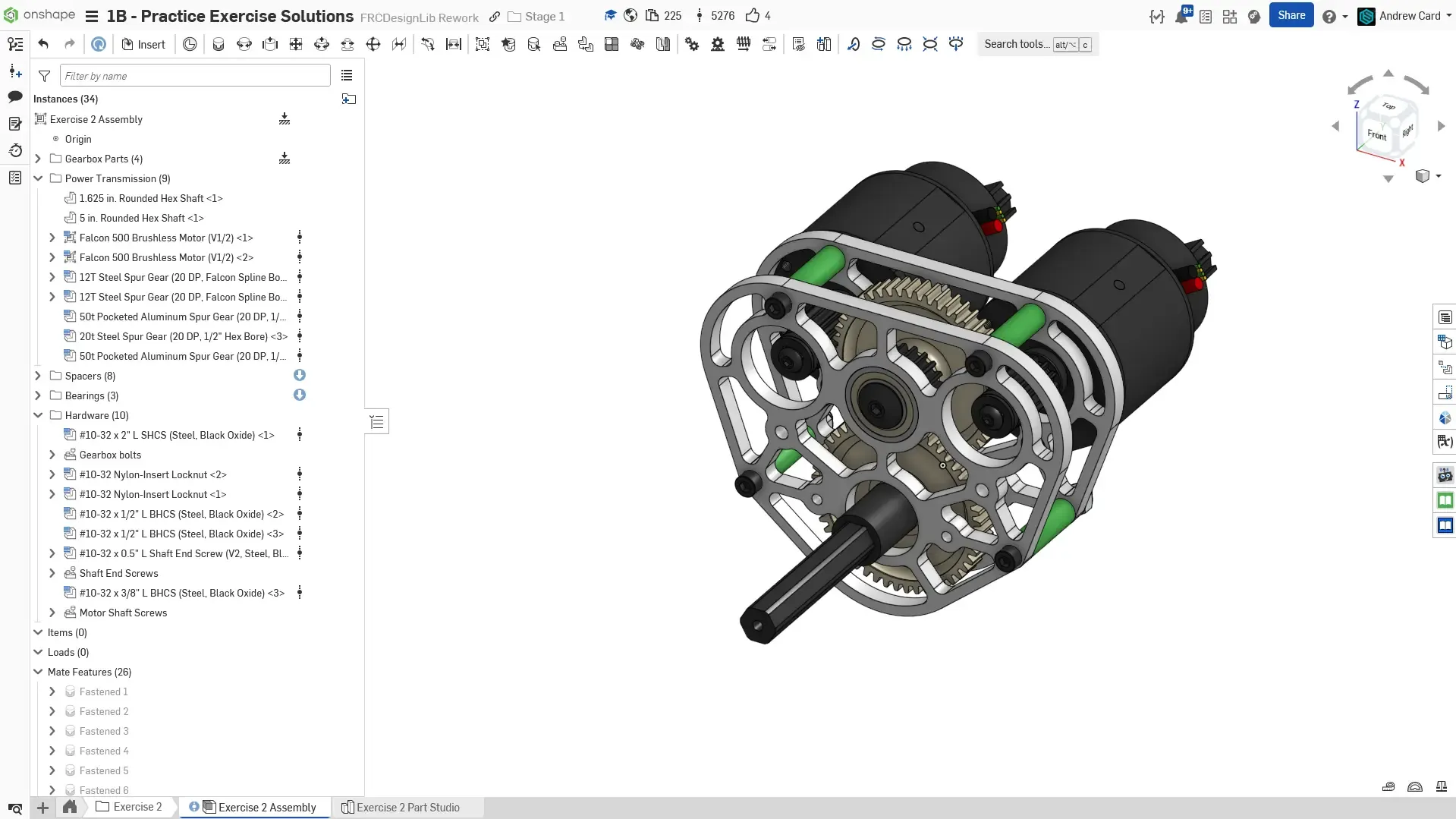
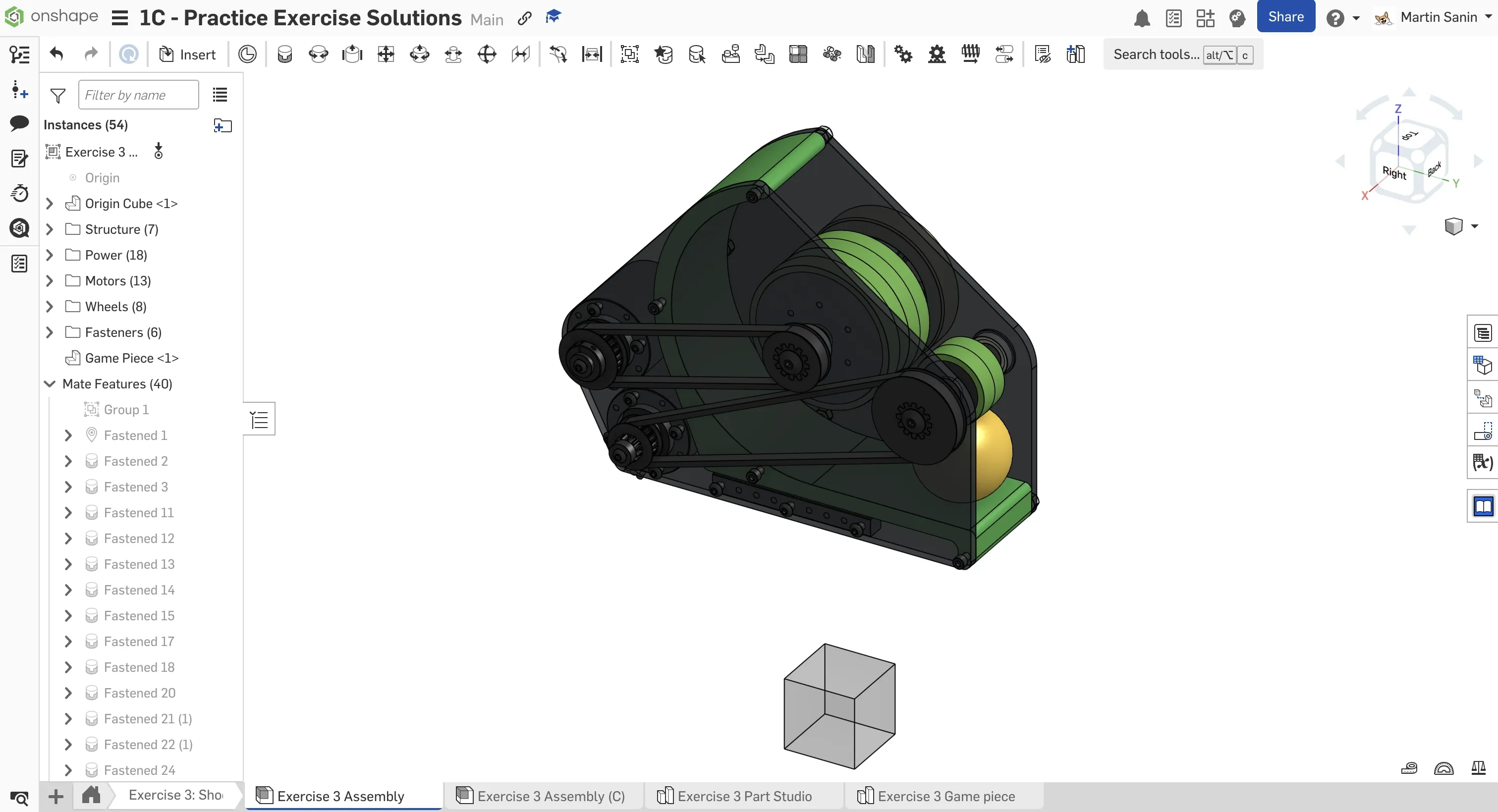
You may have to disable your adblocker to get some content to load properly (we do not host any ads on the site).
If a slideshow has issues loading, reload the webpage and it should be fixed.